
A check-in kiosk works when the patient can tap the right name. A new patient, a walk-in, or a parent dropping off for whichever technician is on today can't do that. They either guess, which sends the alert to someone who isn't expecting them, or they don't check in at all and sit in the waiting room.
A notification group fixes that. It's one button on the kiosk, named whatever makes sense to your patients, that sends the arrival to several people at once.
How it works
- An admin creates the group. In the admin dashboard, open Notification groups, choose the staff who should hear about these arrivals, and name the button. “Next available therapist” and “New patient” are common choices. You can add an image and limit the group to one location.
- The patient taps the group on the iPad. It sits next to your individual providers, so patients with a named appointment still tap their own therapist.
- Everyone in the group gets the alert. Each member gets the check-in on their own phone, in their own account. It shows as Waiting for a team member.
- One person takes the patient. They tap I'll take this patient. Everyone else sees who has it, and the alert stops showing as unread for the whole team.
- Plans change? Release it. If the person who took the patient gets pulled away, they tap Release to team. The arrival goes back to waiting, and someone else can take it.
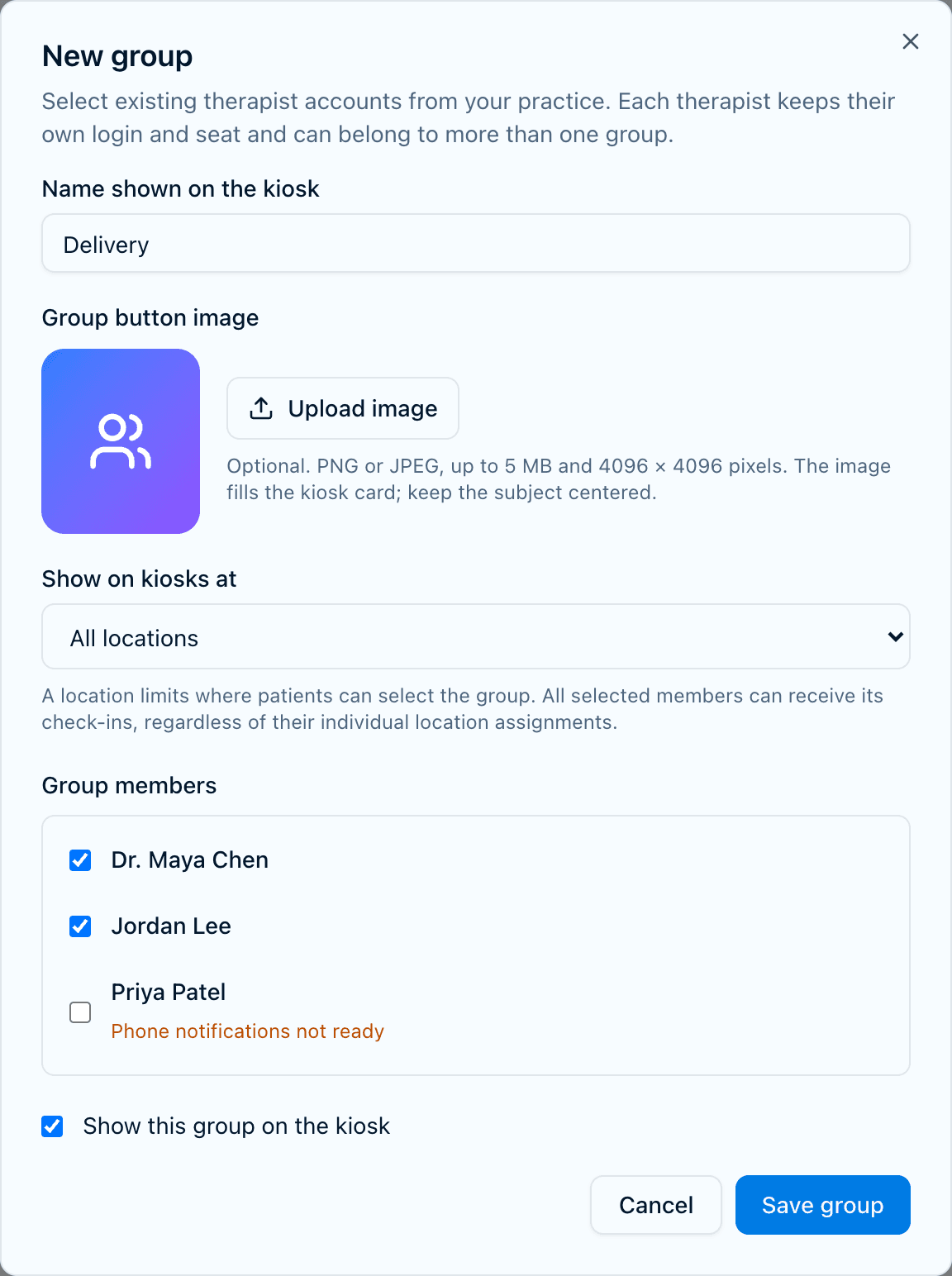
There's no shared login and no extra account. Each member uses the TapIn account they already have, and a group doesn't add seats to your bill.
When a group is the right choice
Use a group when the patient doesn't know who they'll see. These are the situations we see most:
| Situation | Button name | Why a group helps |
|---|---|---|
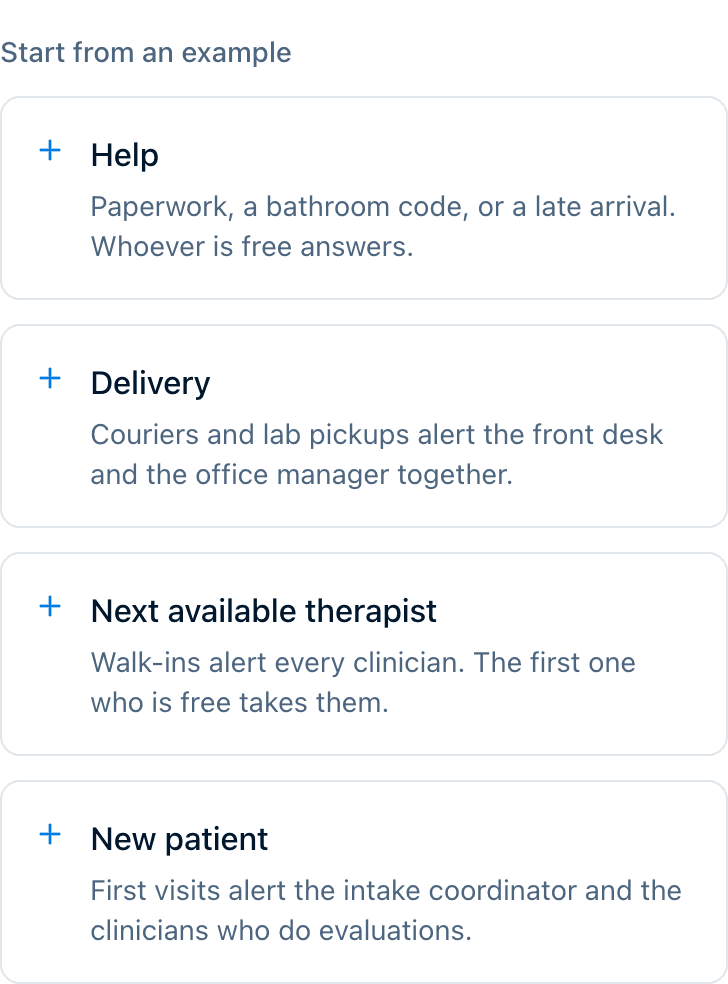
| Walk-ins and same-day visits | Next available therapist | The patient doesn't have a name to tap. Whoever finishes first takes them. |
| Intake and first appointments | New patient | The intake coordinator and the clinicians who do evaluations all hear about it, and one of them takes it. |
| A rotating team | ABA team or Pharmacy | Parents dropping off for a therapist on a rotating schedule don't need to know who's on today. |
| General questions | Help | A patient who just needs someone, for paperwork, a bathroom code, or a late arrival, reaches whoever is free. |
| Deliveries and pickups | Delivery | A courier or lab pickup alerts the front desk and the office manager at once, so the package isn't left at an empty counter. |
When to stick with individual buttons
If the patient booked a specific clinician, they should tap that clinician. A group sends the alert to people who don't need it, and in a busy practice that teaches staff to ignore alerts. Use both: individual buttons for named appointments and a group for everyone else.
The exception is a counter or desk where any trained person can help, like a pharmacy or a front-desk window. There, a kiosk that shows only the group is simpler. Hide the individual buttons on that kiosk's Customize page, and the hidden staff still get group arrivals.
Setting one up well
- Name the button the way patients think. “Next available therapist” beats “Clinical team B.” Patients read the button, not your org chart.
- Keep groups small. Add the people who would actually walk out to the waiting room. Five is plenty for most practices. Everyone else gets a quieter phone.
- Check that members are ready. The group page shows how many members have phone notifications set up. If none do, TapIn hides the group so patients can't pick it.
- Use locations if you have more than one office. A location limits which kiosks show the group. The arrival still goes to every member you picked.
- Agree on who takes it. The app records who took the patient, but your team still needs a habit. A common one is that whoever finishes their session first takes the next arrival.
Getting started
Groups are available to every TapIn practice. Sign in to the admin dashboard, open Notification groups, and choose New group. Make sure your iPad kiosk is on TapIn 1.4 or later. If you're still setting up the iPad, start with our iPad kiosk setup guide. For more on routing arrivals to the right person, read how therapists know a client has arrived.
Questions
Does a notification group need its own login or seat?
No. A group is a button on the kiosk that points at existing staff accounts. Each member keeps their own login and seat, and creating a group doesn't add to your bill.
Can one therapist be in more than one group?
Yes. A therapist can belong to several groups and still keep their own button for named appointments.
What happens if two people tap "I'll take this patient" at the same moment?
Only one of them gets the patient. The other sees who took it. Nobody can take a patient someone else already has unless that person releases them first.
What if nobody in the group can get notifications right now?
TapIn hides the group from the kiosk until at least one member has phone notifications set up, so a patient can't check in to a group that nobody will hear about.
Can a kiosk show only the group and hide the individual names?
Yes. On a kiosk's Customize page you can hide individual buttons. Hidden practitioners still get arrivals for any group they belong to. Keep individual buttons on wherever patients book a specific person.
Which app versions do I need?
The iPad kiosk needs TapIn 1.4 or later to show groups. Older kiosks keep showing individual providers only. Team members get group arrivals on both iPhone and Android.
Check-in for your kind of practice
One button for patients who don't know who they're seeing
Start a 14-day free trial with no credit card. Pair an iPad, invite your team, and set up your first notification group in a few minutes.